1 Understanding General Active Directory Concepts
Domain
The domain acts as a core unit regarding the logical structure of the active directory
It initially stores all the critical information about the objects that belong to the domain only.
Domain Controller
IS an AD server that acts as the brain for a Windows server domain; it supervises the entire network.
Within the domain, it acts as a gatekeeper for user authentication and IT resource authorization

Trees and Forests
Trees and Forests are the two most critical concepts of the AD
Trees
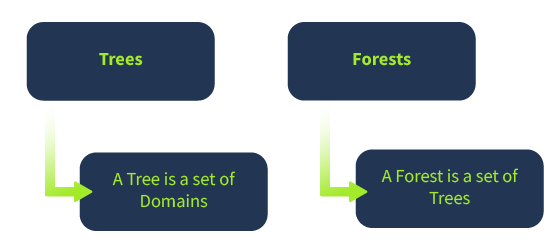
Trees are responsible for sharing resources between the domains. The communication between the domains inside a tree is possible by either one-way or two-way trust.
When a domain is added to the Tree, it becomes the Offspring domain of that particular domain to which it is added - now a Parent domain
Forests
When the sharing of the standard global catalogue, directory schema, logical structure, and directory configuration between the collections of trees is made successfully, it is called a Forest. communication between two forests become possible once a forest-level trust is created
Trust in AD
AD trust is the established communication bridge between the domains in AD
When we say one domain trusts another in the AD network, it means its resources can be shared with another domain.
However, one domain’s resources are not directly available to every other domain, as it is not safe. Thus, the resources sharing availability is governed by Trusts in AD.
The AD trusts are of two categories, which are classified based on their characteristics or the current direction.
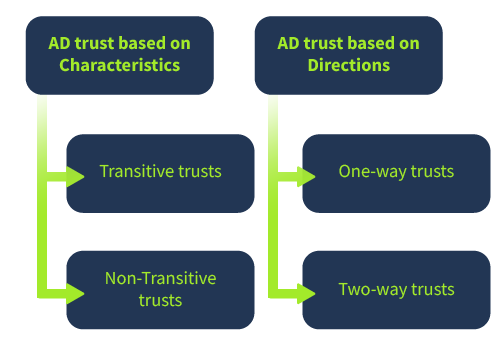
AD trusts categorised based on characteristics are known as Transitive and non-Transitive trusts.
Transitive. Transitive trust reflects a two-way relationship between domains. If there are domains, domain A trusts Domain B and domain B has a transitive trust with domain C.
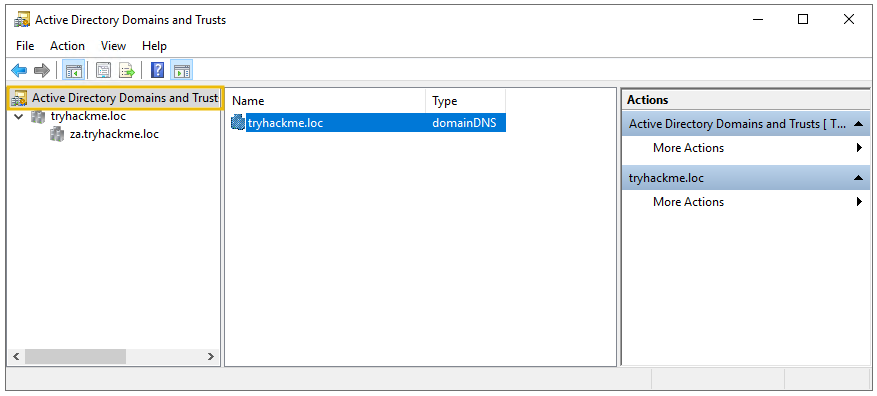
Again, AD trusts are of two types when classified based on their direction: One-way and Two-way trusts. You can access the AD trust through the following:
Server Manager > Tools > Active Directory Domains and Trust
2 Securing Authentication Methods
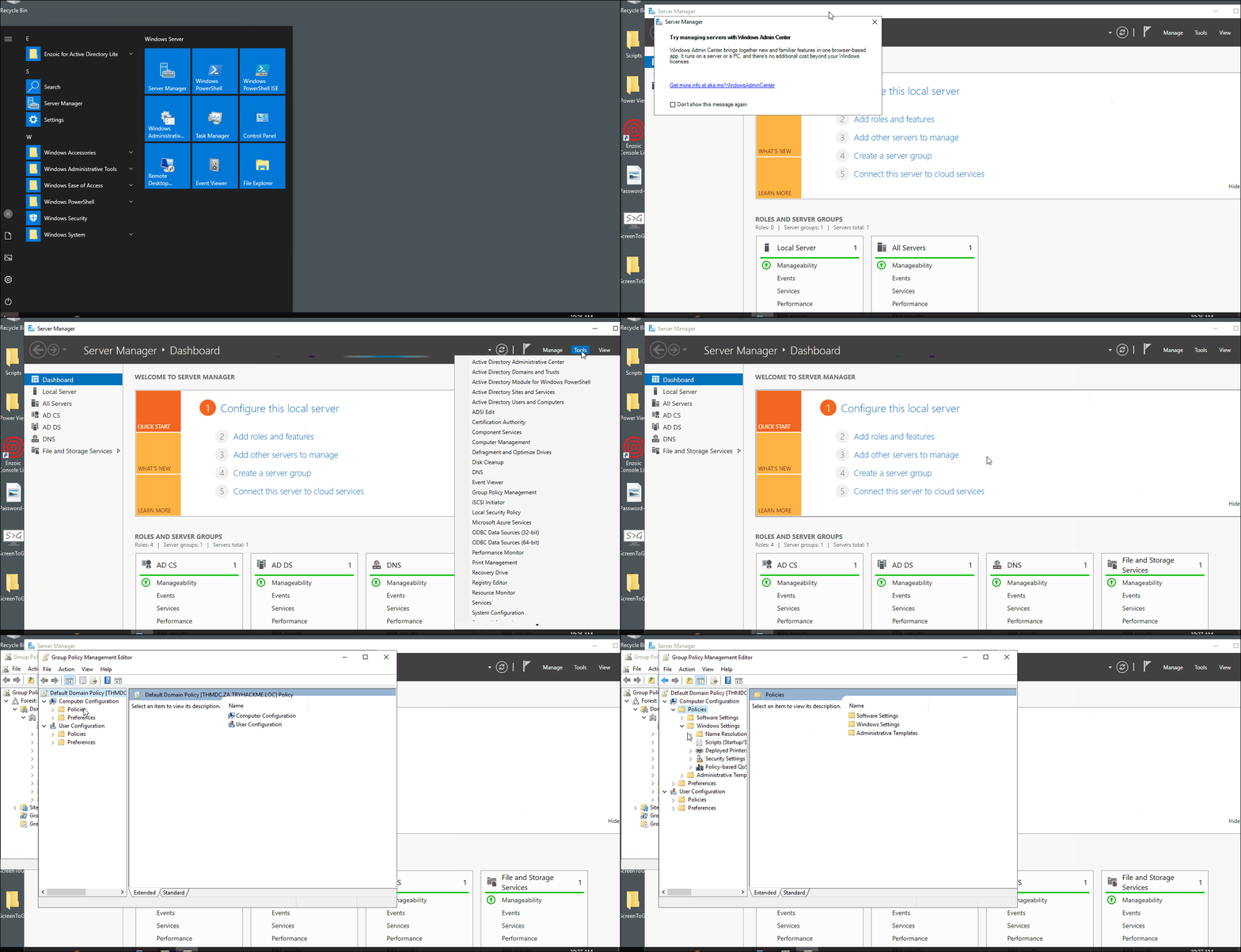
We will use the built-in Microsoft tool Group Policy Management Editor
The instructions to access the tool are as below:
LAN Manager Hash
The user account password for Windows isn’t stored in clear text; instead, it stores passwords with two types of hash representation.
When the password for any user account is changed or set with fewer than 15 characters, both LM hash (LM Manager hash) and NT hash (Windows NT hash) are generated by Windows and can be stored in AD.
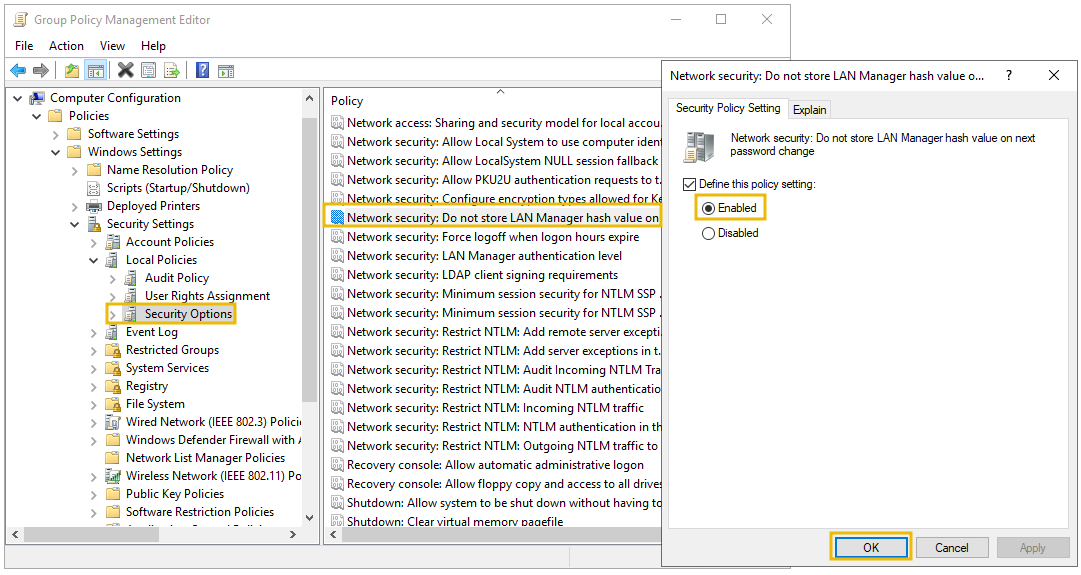
The LM hash is relatively weaker than the NT and prone to fast brute-force attacks. The best recommendation is to prevent Windows from storing the password’s LM hash. You can access it through the following:
Group Policy Management Editor > Computer Configuration > Policies > Windows Settings > Security Settings > Local Policies > Security Options > double click Network security - Do not store LM hash value on next password change policy > select "Define policy setting"
SMB Signing
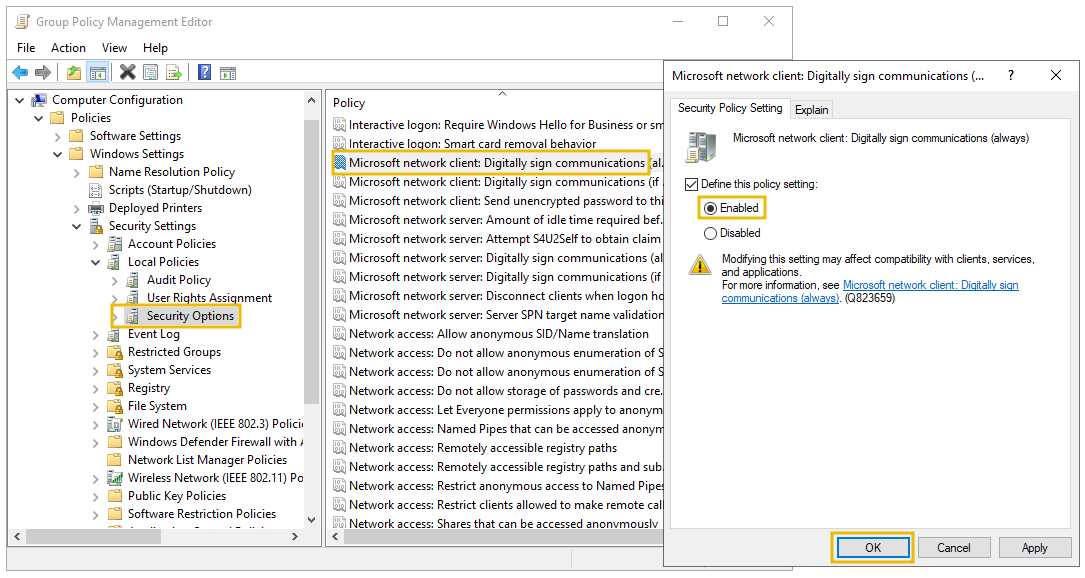
Generally, Microsoft-based networks utilize this protocol for file and print communication. Moreover, it allows secure transmission over the network. Configuring SMB signing through group policy to detect MiTM attacks that may result in modification of SMB traffic in transit.
SMB signing ensures the integrity of data for both client and server. All supported Windows versions have an SMB packet signing option.
Group Policy Management Editor > Computer Configuration > Policies > Windows Settings > Security Settings > Local Policies > Security Options > double click Microsoft network server: Digitally sign communication (always) > select Enable Digitally Sign Communications
LDAP Signing
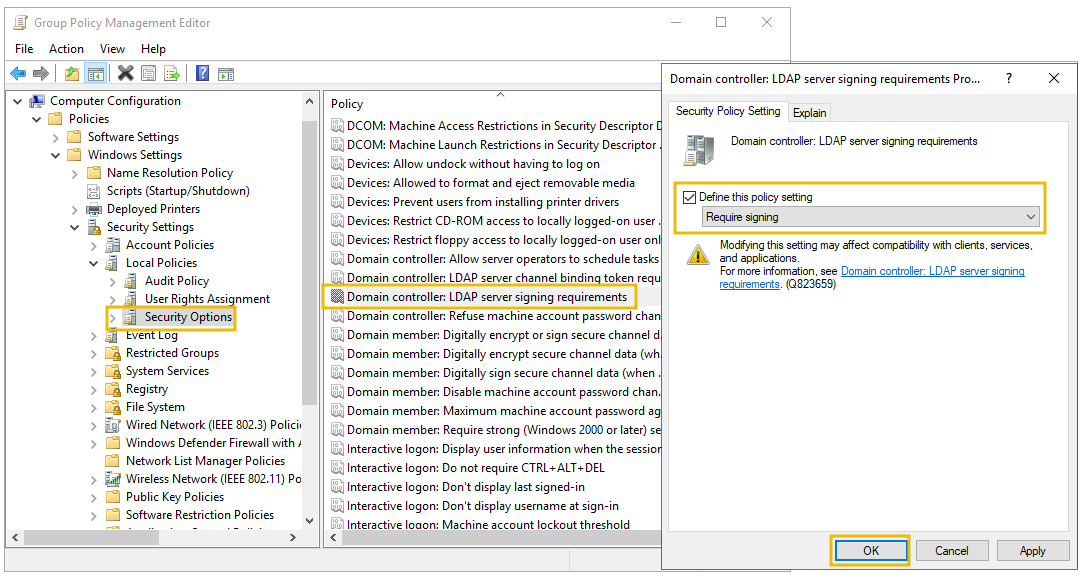
LDAP enables locating and authenticating resources on the network. Hackers may introduce replay or MiTM attacks to launch custom LDAP requests. Therefore, LDAP signing is a Simple Authentication and Security Layer (SASL) property that only accepts signed LDAP requests and ignores other requests (plain-text or non-SSL)
We can enable LDAP signing through the following:
Group Policy Management Editor > Computer Configuration > Policies > Windows Settings > Security Settings > Local Policies > Security Options > Domain controller: LDAP server signing requirements > select Require signing from the dropdown
Password Rotation
Active Directory password security is critical to address because of security breaches and password reuse.
It becomes challenging for any organisation to reset account passwords or update them everywhere, so they prefer not to do it. This scenario could have a few alternate approaches, and each method has pros and cons.
- First Technique: Creating a script to update passwords automatically in the Scheduled Task with the help of PowerShell. This method does not require any additional overhead and removes all the manual efforts for password rotation, but it requires you to write and maintain your script – which could be challenging.
- Second Technique: Add a Multi-Factor Authentication (MFA) solution to AD and choose not to change the password often. It adds a security layer, and you will not need to change your password often. You can read more about implementing MFA here.
- Third Technique: Microsoft provides a solution for services account password rotation through Group Managed Services Accounts (gMSAs), which changes passwords after every 30 days. You can learn more about it here.
Password Policies
All organizations must have a strict password policy to defend against all such attacks. Password policies mean different rules for creating passwords, including length, complexity, and changing frequency.
For viewing and configuring the password policy, you can use the following:
Group Policy Management Editor > Computer Configuration > Policies > Windows Settings > Security Settings > Account Policies > Password Policy
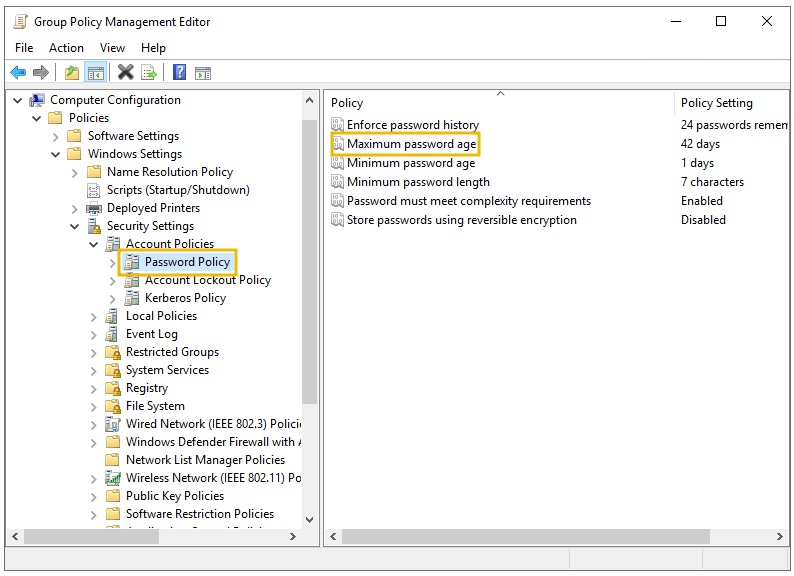
Understanding Password Policy Settings
- Enforce password history: Prevent at least 10 to 15 old passwords from being set as new ones.
- Minimum password length: The minimum password length should be set between 10 to 14.
- Complexity requirements: Must not contain the name of the user account and ensure the password has uppercase letters, lowercase letters, digits, or special characters.
3 Implementing Least Privilege Model
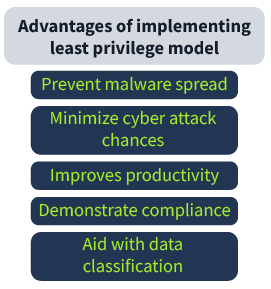
Implementing the least privilege model requires limiting the user or application access to security risks and attack surfaces.
When the application or the users are allowed to operate with administrative privileges, they are granted complete access to modify, alter, and create other resources on the system and perform any action with administrative rights.
Creating the Right Type of Accounts
Implementing the least privilege model requires setting up the different account types for diverse purposes.
It includes the following account types:
- User accounts: You must promote using regular user accounts for most people in the network, who are necessary to perform their regular duties.
- Privilege accounts: These are the accounts with elevated privileges and are further classified as first and second-privilege accounts.
- Shared accounts: These accounts are shared amongst a group of people, as the visitors with bare minimum privileges, to give limited access for a specific time. These accounts are not recommended and must be utilized in limited scenarios.
Role-Based Access Control
As a System Administrator, it is of utmost importance to grant rights to resources while keeping the principle of Least privilege in mind, which states that:
Per Wikipedia, "The principle of minimal privilege or the principle of least authority, requires that in a particular abstraction layer of a computing environment, every module (such as a process, a user, or a program, depending on the subject) must be able to access only the information and resources that are necessary for its legitimate purpose".
Role-based access control allows you to indicate access privileges at different levels. It includes DNS zone, server, or resource record levels and specifies who has access control over creating, editing, and deleting operations of various resources of Active Directory.
Tiered Access Model
The Active Directory Tiered Access Model (TAM) comprises plenty of technical controls that reduce the privilege escalation risks. It consists of a logical structure that separates Active Directory's assets by creating boundaries for security purposes. The primary goal is the protection of Active Directory's top-valued identities (Tier 0).
At the same time, domain members and other users can perform routine tasks, such as email checking, surfing the internet, and using apps and other services (Tier 1, 2). It comprises three tiers, Tier 0, 1, and 2, which are as follows:
- Tier 0: Top level and includes all the admin accounts, Domain Controller, and groups.
- Tier 1: Domain member applications and servers.
- Tier 2: End-user devices like HR and sales staff (non-IT personnel).
Auditing Accounts
Accounts audit is a crucial task mainly carried out by setting up the correct account, assigning privileges, and applying restrictions. Three audit types related to accounts must be done periodically: usage, privilege, and change audits.
- Usage audits allow monitoring each account's specific tasks and validating their access rights.
- A privilege audit allows you to check if every account in the system has the least privilege.
- Change audits allow you to look for any improper changes to account permissions, passwords, or settings. Any unacceptable change to these may lead to a data breach.
4 Microsoft Security Compliance Toolkit
Microsoft Security Compliance Toolkit (MSCT) is an official toolkit provided by Microsoft to implement and manage local and domain-level policies.
You can download MSCT from the official Microsoft website.
Installing Security Baselines
Microsoft offers its customers security baselines readily available in consumable formats, like, Group Policy Backups.
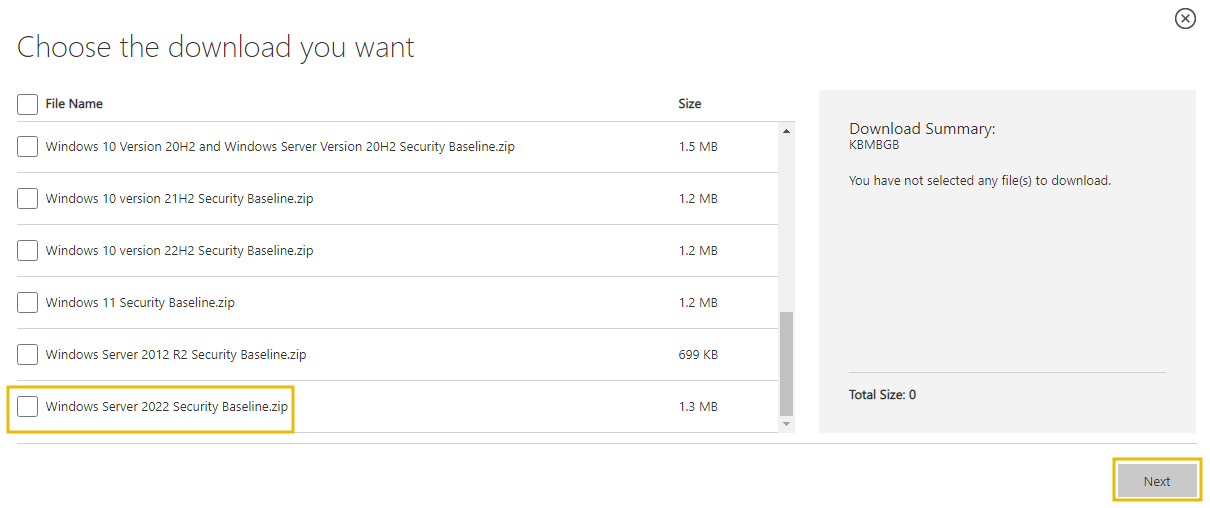
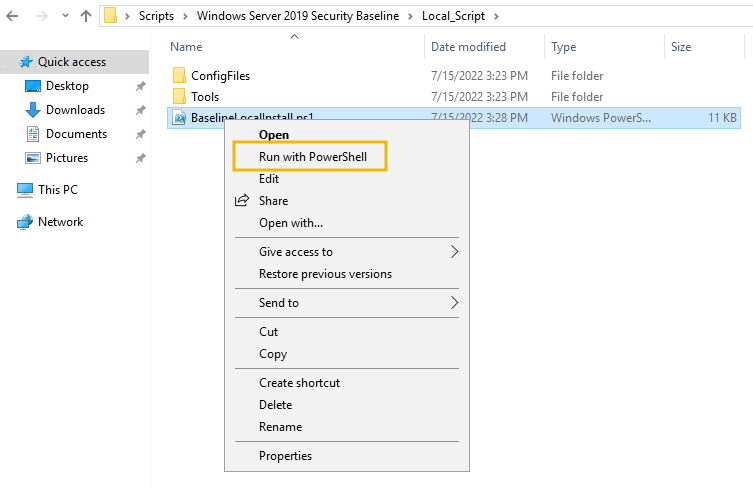
You can easily download it as zip files and extract the content. Here is how you can download and install the security baselines for Windows Server in a simple way:
Open Microsoft Security Compliance Website > click Download > click Windows Servers Security Baseline.zip > Download
Open extracted folder > Scripts > & select desired baseline & execute with PowerShell
Policy Analyzer
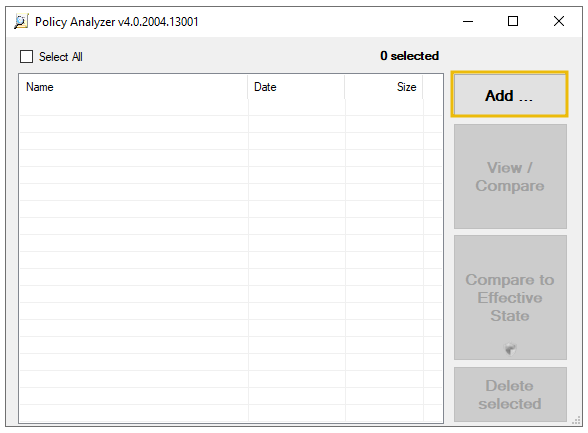
Policy analyzer allows comparison of group policies to quickly check inconsistencies, redundant settings, and the alterations that need to be made between them.
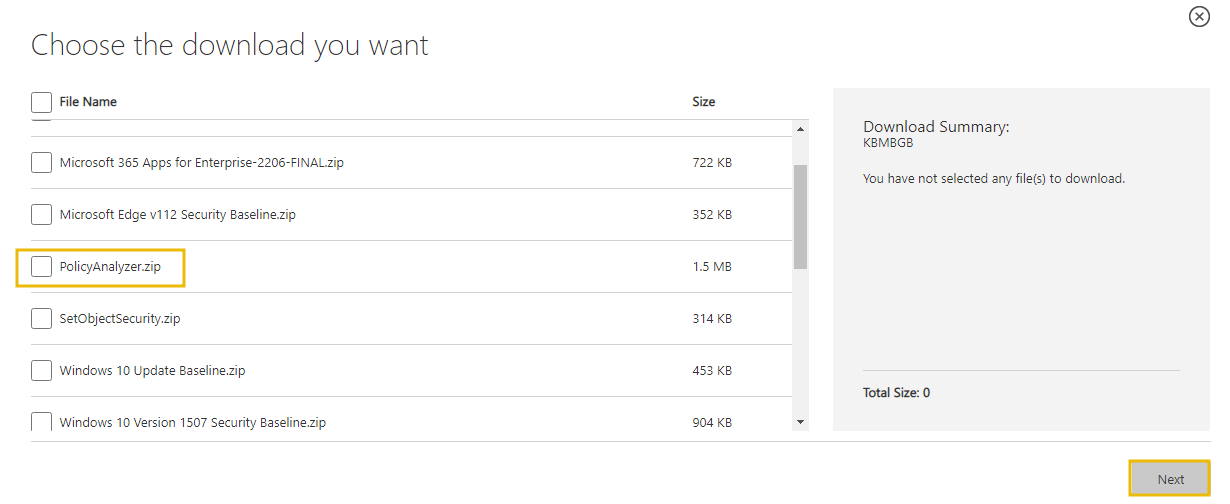
Once downloaded, you can run the PolicyAnalyzer.exe to add and manage local or domain-level policies.
5 Protecting Against Known Attacks
Kerberoasting
Is a common and successful post-exploitation technique for attackers to get privileged access to AD
The attacker exploits the Kerberos Ticket Granting Service (TGS) to request an encrypted password, and then the attacker cracks it offline through various brute force techniques.
These attacks are difficult to detect as the request is made through an approved user, and no unusual traffic pattern is generated during this process.
You can prevent the attack by ensuring an additional layer of authentication through MFA or by frequent and periodic Kerberos Key Distribution Centre (KDC) service account password reset. You can learn more about the attack here.
Weak and Easy-to-Guess Passwords
The easiest target for intruders to breach security is the weak and easy-to-guess old passwords. The best recommendation is to use strong passwords and avoid already-known ones. A strong password consists of a combination of uppercase and lowercase letters, numbers, and special characters.
Brute Forcing Remote Desktop Protocol
The intruders or attackers use scanning tools to brute force the weak credentials. Once the brute force is successful, they quickly access the compromised systems and try to do privilege escalation along with a persistent foothold in the target's computer. The best recommendation is to never expose RDP without additional security controls to the public internet. Continuous audits for scanning attacks or brute-force attempts are also an important step.
Publically Accessible Share
During AD configuration, some share folders are publicly accessible or left
unauthenticated, providing an initial foothold for attackers for lateral movement. You can use the Get-SmbOpenFile cmdlet in PowerShell to look for any undesired share on the network and configure access accordingly.
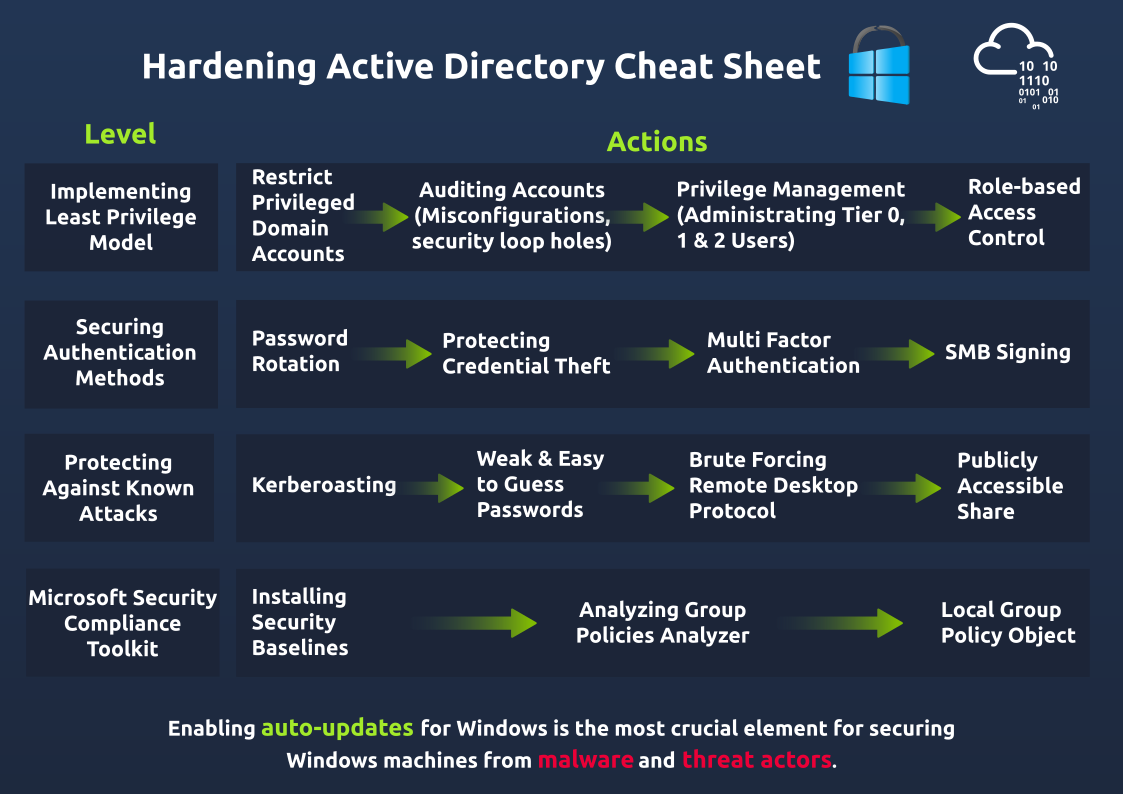
6 Cheat sheet